Debtors User Guide
A practical workflow guide for insurance brokers managing outstanding and premium-funded invoices in the Folio Broker Portal.
How to use this guide Start with the workflow that matches what you are doing today: checking outstanding invoices, creating a debtor, following up for payment, or completing paid items.
Where Debtors fits in your day
Use Folio Debtors as your working list for invoices that still need attention after a policy has been transacted. The aim is simple: see what is outstanding, create the right debtor record, keep ownership clear, and move paid items out of the awaiting payment list.

Choose where to start
Review invoices that do not yet have a debtor, then create them individually or in bulk.
This is your daily working list. Add notes or tasks, send reminders and complete the debtor once it is paid.
Keep funded invoices separate from the items that need regular payment chasing.
Use this view for paid or closed debtor history rather than day-to-day work.
Review outstanding invoices
The Invoice report is a live view of outstanding INSIGHT invoice balances. Review the invoice number, client, transaction type, effective date, client owner, balance, funding status and existing debtor status before creating anything.
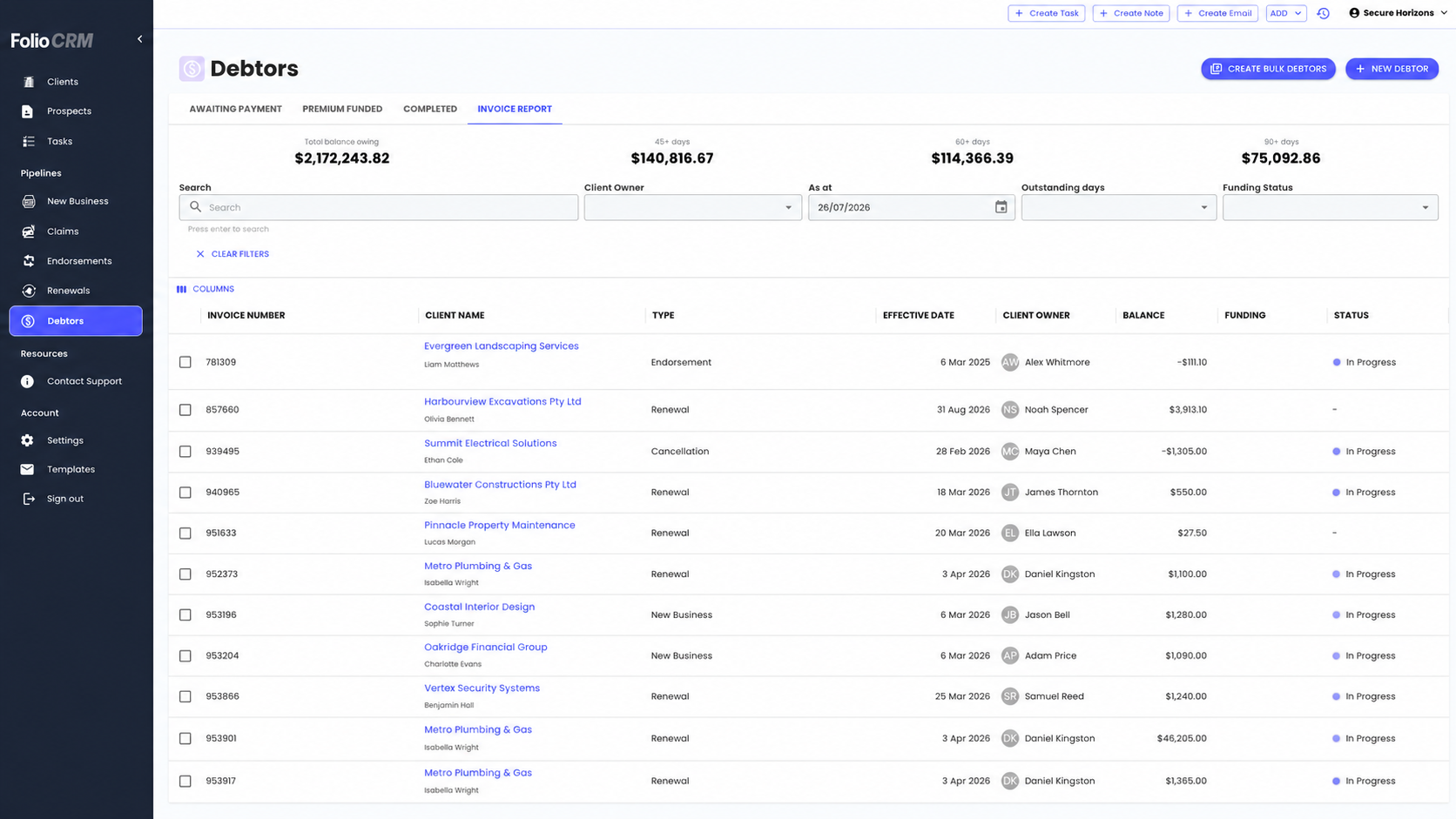
For a single debtor, select invoices for one client only. To start debtor management for multiple clients, use Bulk Debtors.
Create bulk debtors
Bulk creation is useful for a larger debtor run when you want Folio to prepare debtor records from the Invoice Report, such as a weekly review.
Folio allows up to 50 debtors at a time. Run bulk creation outside work hours where possible, especially for larger INSIGHT ledgers.
- 1
Open Debtors > Invoice Report.
- 2
Select Create Bulk Debtors.
- 3
Choose the Client Owner.
- 4
Set the As at, Outstanding days and Funding Status filters.
- 5
Select Preview.
- 6
Review how Folio has grouped invoices and check any skipped items.
- 7
Select Create Debtors when the preview looks right.
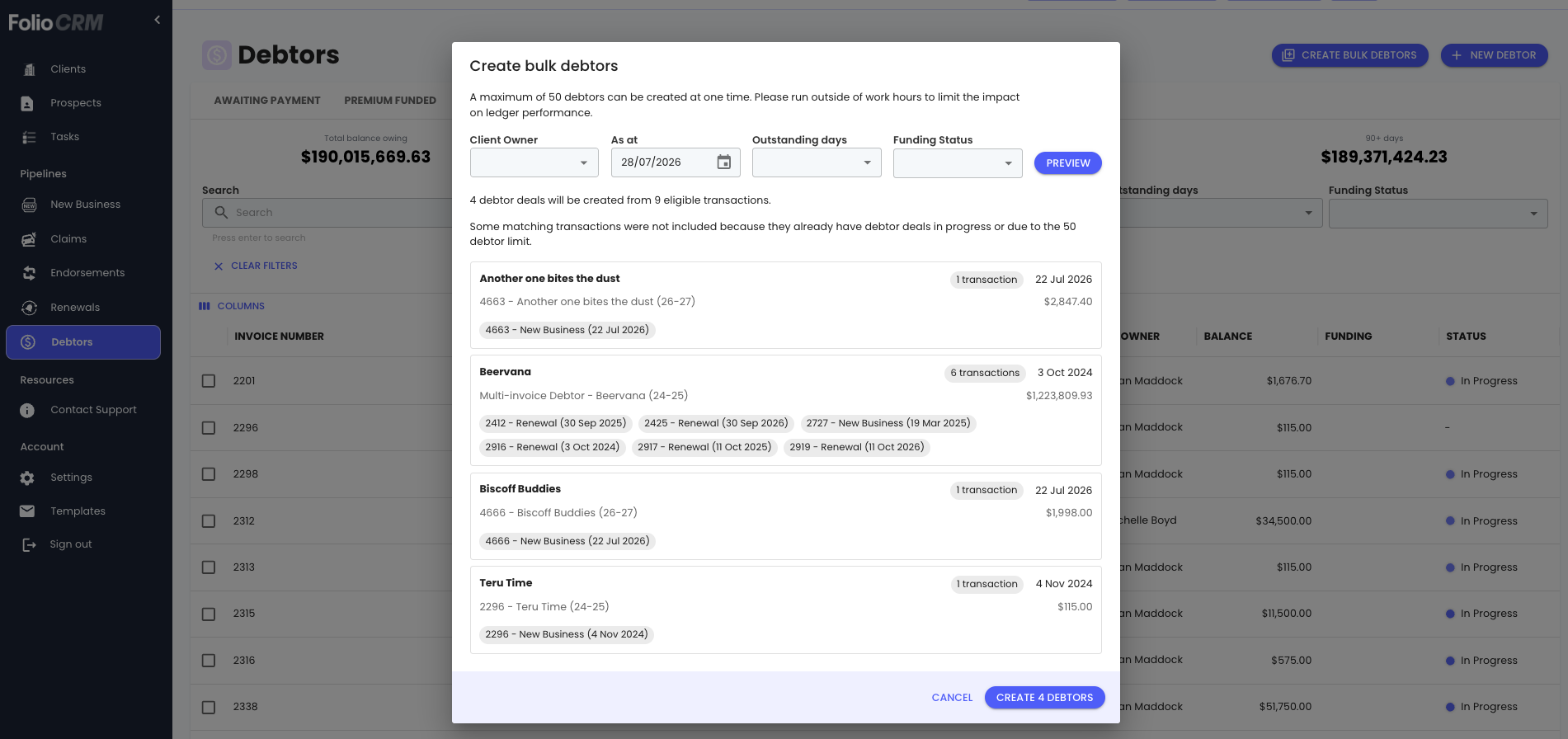
How Folio decides what to create
- Invoices are grouped by Folio client.
- Invoices already linked to an active debtor are skipped, helping reduce duplicates.
- A single-invoice debtor is named from the invoice number and client.
- A multi-invoice debtor is named “Multi-invoice Debtor – Client Name”.
Creating debtors on an ad-hoc basis
Use this workflow when creating a debtor for a specific client as part of your daily or weekly review.
Create a single debtor from the Invoice Report
- 1
Open Debtors from the left navigation.
- 2
Select the Invoice Report tab.
- 3
Check the Status column to see whether the invoice already has a debtor in progress.
- 4
Select the invoice—or invoices for the same client—you want to manage.
- 5
Select + Add New Debtor.
- 6
Check the client and selected policy transactions.
- 7
Choose the year folder and assignee, then add any useful notes or files.
- 8
Select Submit, then Go to Debtor to open the new debtor record.
Creating a debtor when a deal is completed
Use this workflow when you want to set up the debtor record as soon as a deal is completed and the policy has been transacted.
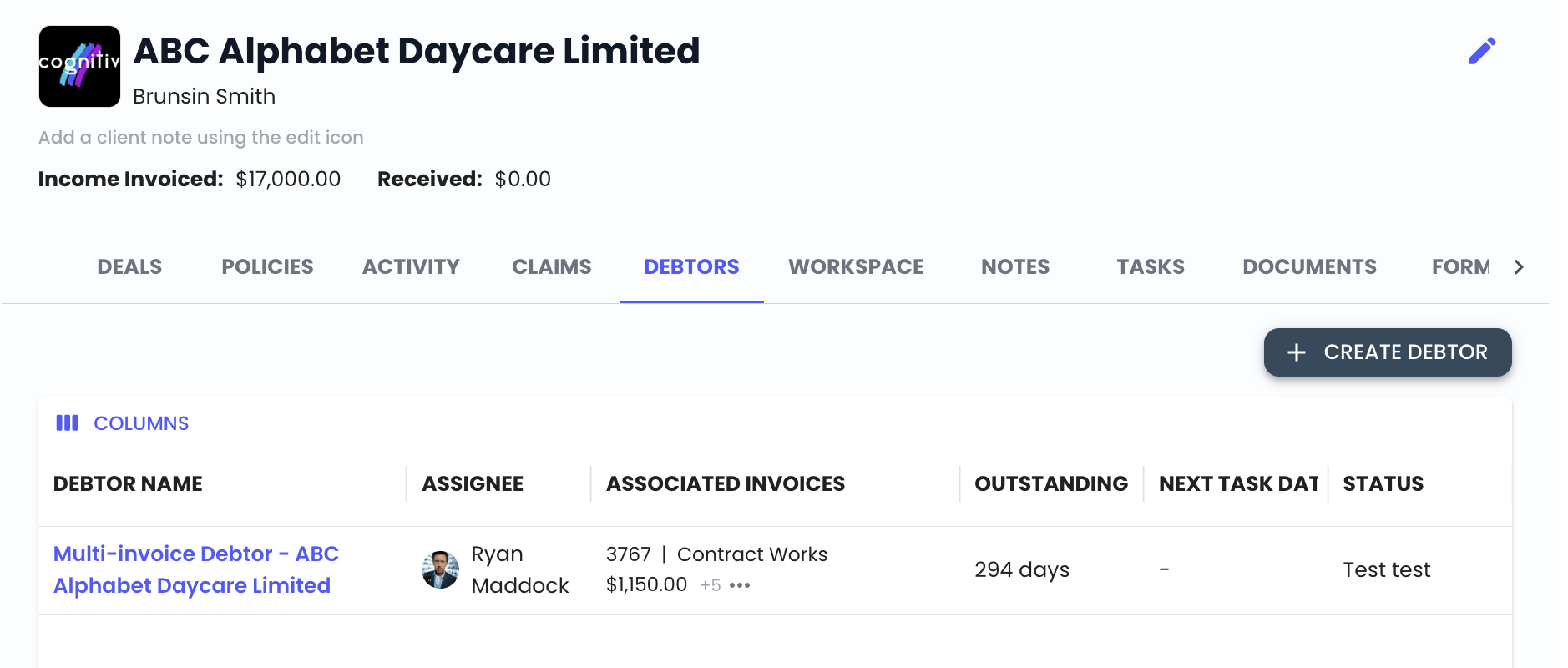
- 1
Open the Client record after the policy has been transacted.
- 2
Select the Debtors tab.
- 3
Select + Create Debtor.
- 4
Add a clear folder name and select the relevant year.
- 5
Select the invoices you want to debtor-manage.
- 6
Assign the debtor to the person managing the follow-up.
Guidance for the New Debtor form
Use the guidance beside each part of the form as you work from top to bottom.
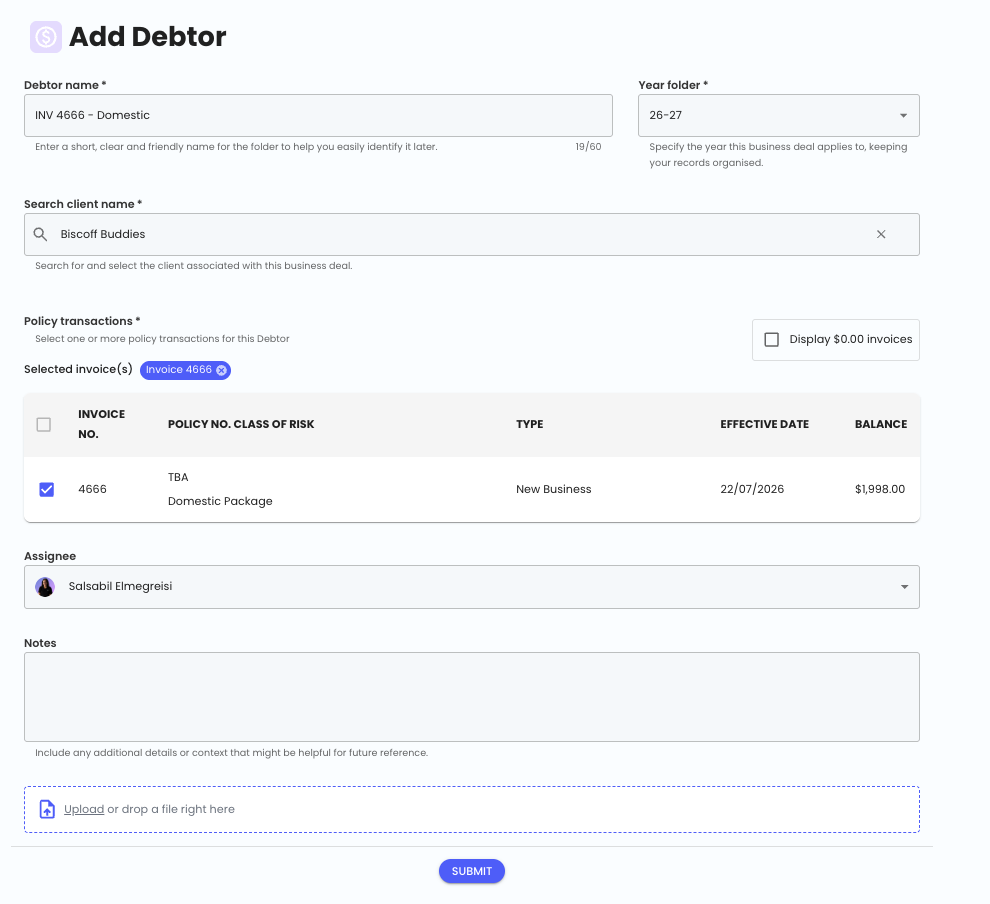
Give the debtor record a folder name then choose the year for filing.
Search for and confirm the client connected to the invoice.
Select the invoices to manage. Display $0.00 invoices when a premium-funded item still needs attention.
Choose the person who owns the payment follow-up.
Add payment discussions, funding details or supporting documents before submitting.
Managing the debtor record
The debtor record brings invoices, activity, documents, ownership and completion controls together. Use the quick reference beneath the image.
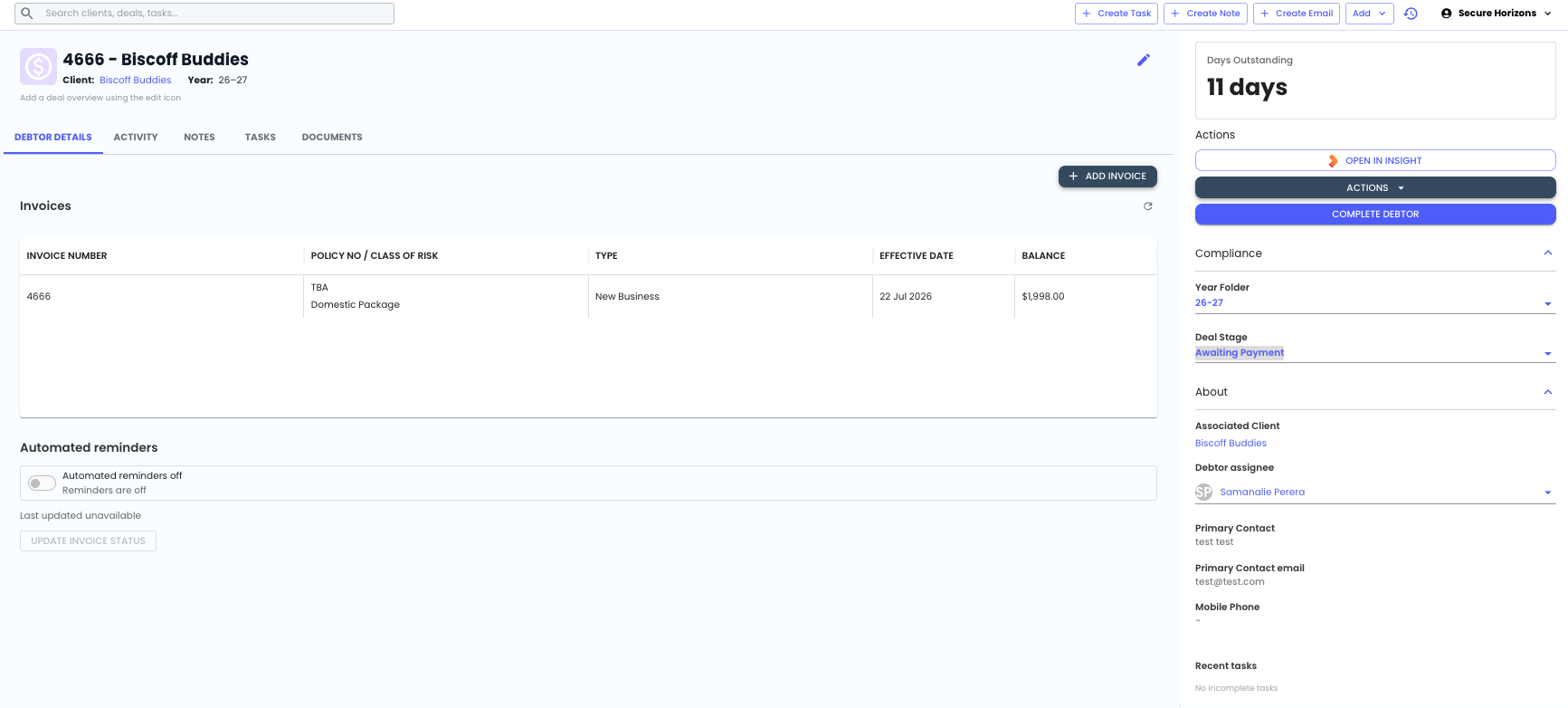
InvoicesReview linked invoices or select + Add Invoice to include another invoice.
Notes and tasksUse Notes and Tasks to record contact outcomes and next actions.
DocumentsSave client and insurer correspondence relating to payment for the linked invoice(s).
Automated remindersUse the Automated reminders toggle when reminder automation is appropriate.
Status and completionUpdate Deal Stage for funded items or select Complete Debtor when follow-up is finished.
OwnershipUpdate Debtor assignee when responsibility changes.
Use automated reminders
If your brokerage has automated reminders enabled, Folio can help chase outstanding invoices from the debtor record.
- 1
Open the debtor record and go to Debtor Details.
- 2
Check that at least one linked invoice has a positive balance.
- 3
Turn the Automated reminders toggle on.
- 4
Confirm the client’s primary contact email address.
- 5
Make sure phone and mobile numbers include a country code.
- 6
Select Confirm.
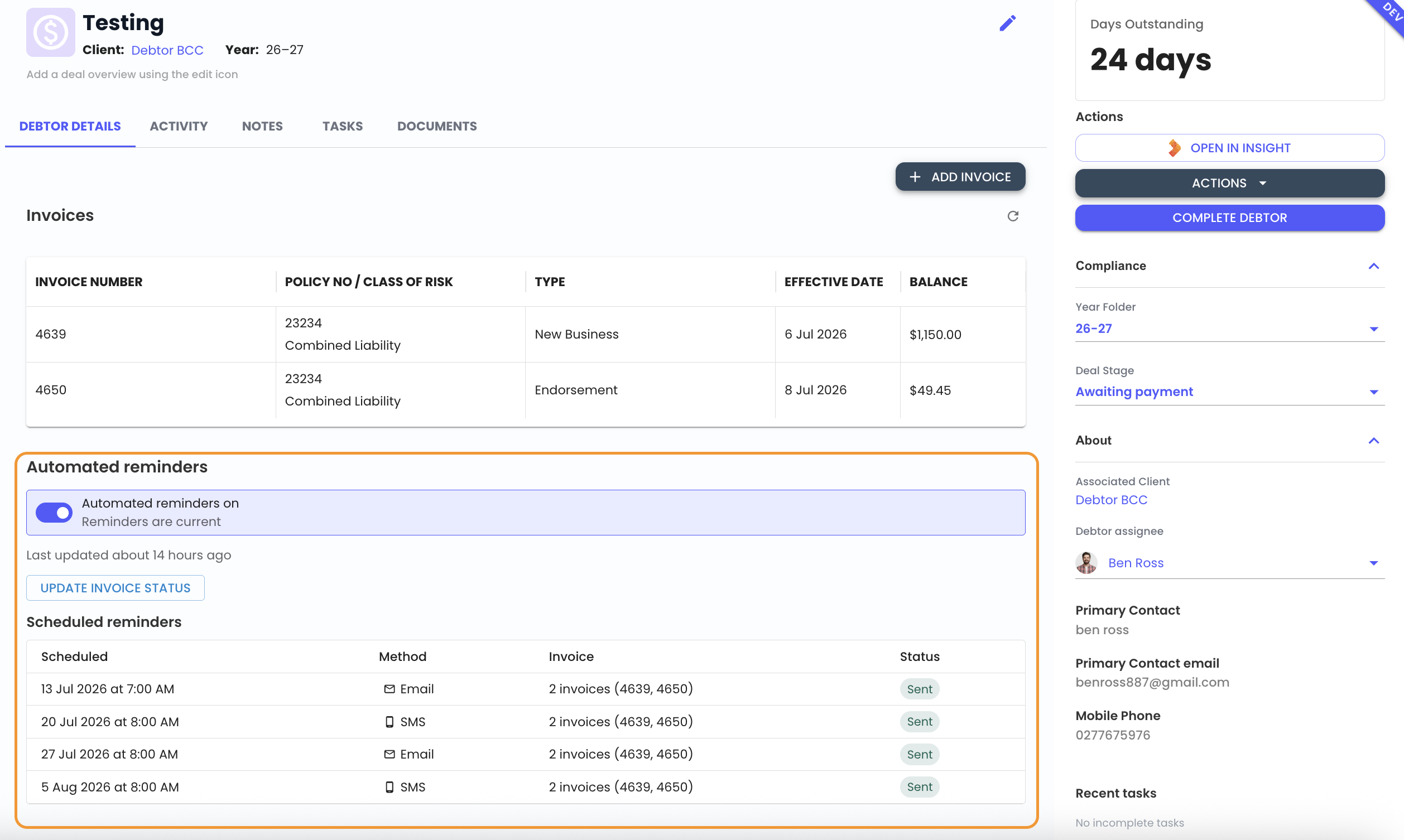
- Only positive-balance invoices are chased.
- The client’s primary contact details are used, so they must be correct.
- Reminders are controlled per debtor.
- Email and SMS reminders are automatically saved to the client’s debtor file.
- Update Invoice Status reconciles current invoice balances.
- Folio syncs with INSIGHT overnight and turns off reminders for paid invoices.
Manually manage follow-up
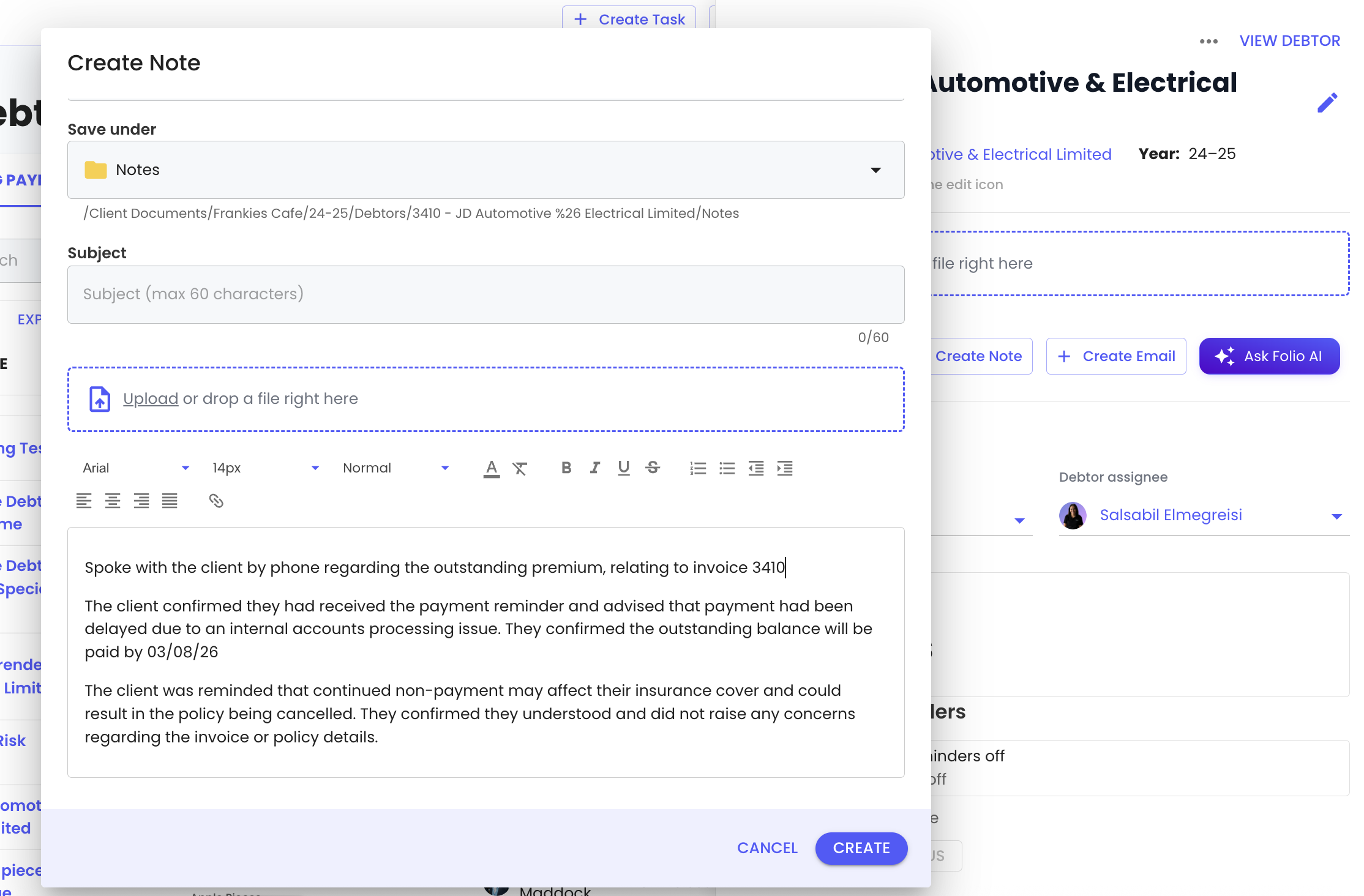
If automated reminders are not enabled—or certain invoices need personal follow-up—use notes to record client phone conversations and pre-configured email templates for written reminders.
Sending Manual Email Reminders
Open the email composer from the debtor record, choose the appropriate reminder template and confirm the recipient, subject and signature before sending.
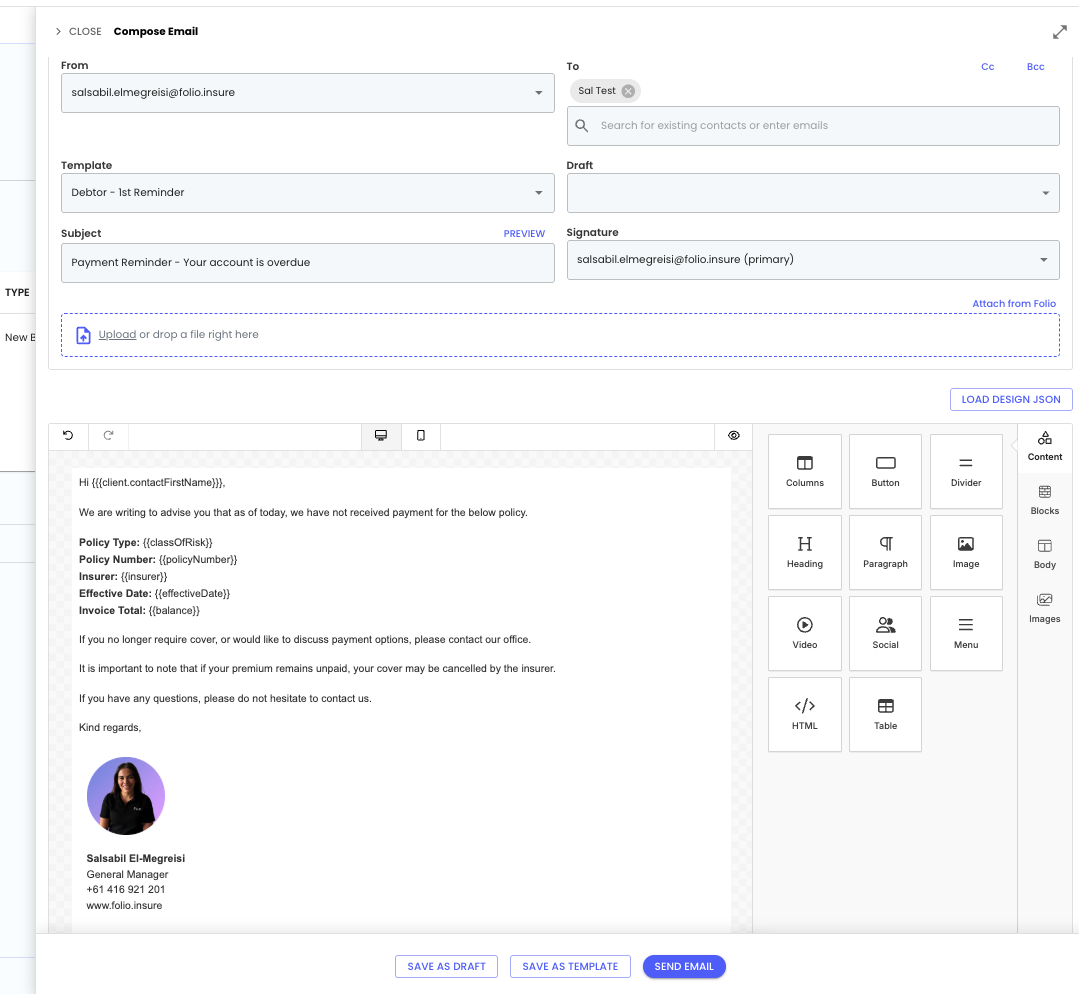
Example reminder content
Templates can pull invoice details through automatically, reducing rekeying and keeping communication consistent.
Hi {{{client.contactFirstName}}},
This is a friendly reminder that your account is overdue.
Policy Type: {{classOfRisk}}
Policy Number: {{policyNumber}}
Insurer: {{insurer}}
Effective Date: {{effectiveDate}}
Invoice Total: {{balance}}
If you no longer require cover, or would like to discuss payment options, please contact our office.
It is important to note that if your premium remains unpaid, your cover may be cancelled by the insurer.
If you have any questions, please do not hesitate to contact us.
Kind regards,
Notes
For phone calls about payment, add a note within the debtor record or use the quick-preview function to record the conversation.
Suggested daily workflow
Open DebtorsStart in Awaiting payment for active manual follow-up.
Check Invoice ReportLook for new outstanding invoices that need debtor management.
Avoid duplicatesCheck whether a debtor is already in progress.
Create debtorsUse one debtor for client-specific work or bulk creation for a debtor run.
Assign ownershipMake sure the person doing the follow-up owns each debtor.
Follow upUse notes, tasks, templates or automated reminders.
Move stagesMove to Premium Funded or Completed when active chasing is finished.
If something looks wrong
An invoice is missing
Clear filters, check the client and confirm the invoice is outstanding in INSIGHT.
Bulk preview has no results
Try a different date range, owner, outstanding-days filter or funding status.
Bulk preview is too large
Narrow the filters and preview again before creating debtors.
A debtor cannot be created from selected invoices
Confirm that all selected invoices belong to the same client.
Automated reminders cannot be enabled
Check for a positive-balance invoice and complete primary contact details.
A paid debtor is still active
Run Update Invoice Status or allow the overnight update, then complete the debtor.
Interested in automated reminders?
Talk to Folio Customer CareIf your brokerage is interested in enabling the Automated Reminders feature, contact our team for a conversation about getting started.